SharePoint Version History Limits Can Help You Optimize SharePoint Storage

In my recent blog post, Hidden Connection Between SharePoint File Versioning and Storage,  I delved into the mechanics of file versioning in SharePoint. Each version is a full copy of the file, meaning that large files can rapidly consume storage space. For instance, a 200MB PowerPoint file with 10 versions will use up 2GB of storage. If you have 500 such files, that’s a whopping 1TB of storage consumed. This versioning system can lead to SharePoint becoming cluttered with outdated and often irrelevant file versions. However, it’s not all bad news. Microsoft has recently introduced SharePoint Version History Limits, which offers better control over file versions at both the organization and site levels. With these new limits, you can optimize SharePoint storage by deleting excessive versions, thereby freeing up and making better use of your valuable storage space.

Let’s explore how to use Version History Limits to optimize SharePoint storage and enhance your document management efficiency.


Read More

The Hidden Connection Between SharePoint File Versioning and Storage Management

Today, effective document management is crucial in the digital workplace. SharePoint offers strong file versioning capabilities that ensure every edit and update is recorded, creating a comprehensive version history. This feature not only facilitates seamless collaboration but also acts as a safeguard against accidental deletions or alterations. By maintaining a detailed version history, SharePoint upholds document integrity and ensures compliance with regulatory standards.

Many organizations are approaching their SharePoint storage limits and are asking the question: “Do I really need to buy more SharePoint storage, or is there a better way?”

So how does SharePoint File Versioning impact your storage management? In this post, we’ll explore the relationship between SharePoint file versioning and storage and provide tips to optimize your SharePoint environment.


Read More

Keeping Your Microsoft Certification Badges Accurate and Visible

When displaying your hard-earned Microsoft certification badges on platforms like Credly and LinkedIn, accuracy is crucial. It can be frustrating to see some of your Microsoft certification badges marked as expired. In this blog post, we will walk you through the steps to ensure that your Microsoft certification badges remain accurate and visible, even after the transition from Credly to Microsoft Learn. Let’s dive in and ensure that your Microsoft certification badges and professional achievements are accurately represented, as they truly deserve! 🌟


Read More

How to search for Teams messages: A Guide for Admins

Microsoft Teams is a powerful collaboration tool. As an admin, you need to know how to search for chat and channel messages. In this guide, we will cover various search options. Firstly, the standard user search option, secondly, the Content search and eDiscovery standard options for admins and finally, eDiscovery premium for complex needs. We’ll explain each option’s benefits and limitations to help you choose the best option for your needs.


Read More

How to keep up to date with Microsoft 365 Copilot

Staying up-to-date on the latest developments on Microsoft 365 Copilot is vital in today’s fast-paced world. However, keeping track of all the updates and changes can be time-consuming. But don’t worry! This blog will explain how to use Power Power Automate to send your personalized Microsoft 365 Copilot RSS news feed to a Microsoft ToDo list (or any location). Once set up, you will receive updates as soon as new content is published without spending endless hours searching for them. With this approach, you will always be up-to-date with the latest Microsoft 365 Copilot news and information, and you can say goodbye to the hassle of manually tracking updates.

This blog is your ultimate guide to staying ahead of the game, ensuring you never miss any crucial updates. Using Power Automate and RSS feeds, you can automatically add new and updated content to your To-Do list and be the first to know about any critical information. With this simple yet effective approach, you can stay in control and stay ahead of the curve.


Read More

Microsoft 365 Retention Archive and Backup Strategies Explained

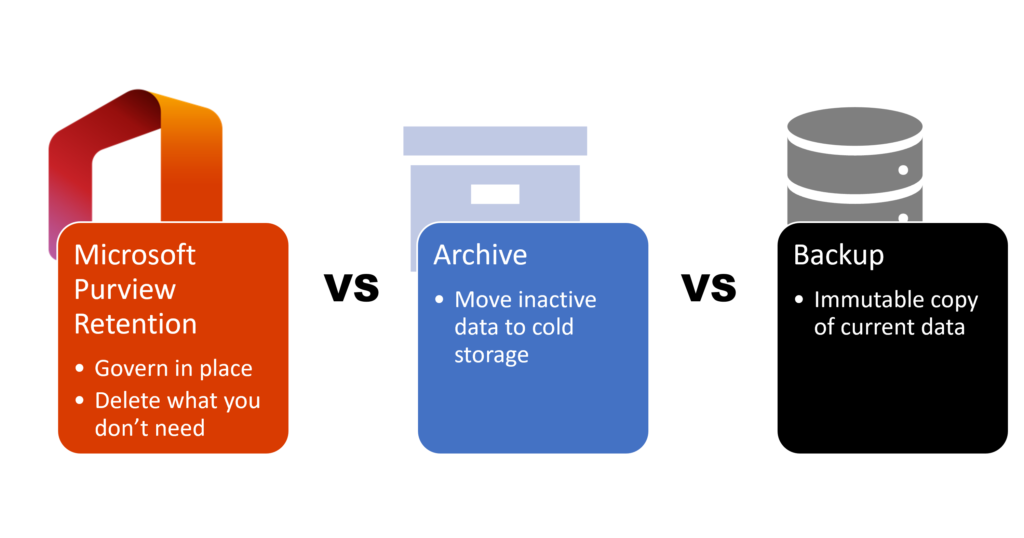
Are you unsure about how to manage your Microsoft 365 data retention, archiving, and backup? In this guide, we’ll break down these crucial data management strategies to help you protect your data, ensure compliance, and optimize your storage in Microsoft 365. By the end of this article, you’ll understand the key differences between these strategies and how to apply them effectively.


Read More

How to use Microsoft 365 Retention Policies and Labels

Are you struggling to stay compliant with industry regulations and company policies when it comes to managing your organization’s data? Look no further, because Microsoft 365 retention can help you stay compliant and secure. Microsoft Purview Data Lifecycle and Records Management provides powerful tools to enable you to automatically retain or delete content based on your retention schedules.

In this blog, I will walk you through the basics of setting up retention policies and labels in Microsoft 365, so you can start meeting regulatory requirements and protecting your organisation’s sensitive information.


Read More

How to use sensitivity labels with your PDF files

Did you know you can now label your PDF files with the same sensitivity labels you use with your Word, PowerPoint and Excel files?

Using Microsoft Purview sensitivity labels, you can add a visible classification label, protect your PDF files with encryption and add visible marking such as headers, footers and watermarks. Your PDF file now respects any Data loss Prevention policies, such as blocking external sharing of confidential data.


Read More

How to allow auto-forwarding to Teams channels

Email forwarding can be useful, but poses a security risk due to the potential disclosure of information. Therefore the Anti-spam outbound policy blocks the auto-forwarding at the tenant level by default. Although this minimises the security risks, it hampers productivity since there are valid reasons to allow auto-forwarding to an external domain.

There are valid use cases for external email forwarding such as:

  • To support the adoption of Microsoft Teams and the concept of working in Teams rather than sending email. However, users cannot auto-forward emails to a Teams channel, because the Teams channel email addresses are external email addresses, for example (uniqueid@emea.teams.ms or uniqueid@uk.teams.ms).
  • Auto-forwarding emails to a third-party system, such as CRM or ticketing system for processing.

Read on to learn how to allow auto-forwarding to Teams channels and other authorised external domains to increase productivity and reduce security risks.


Read More

How to manage Microsoft 365 evergreen change with Power Automate

Are you effectively managing your Microsoft 365 evergreen change?

The pace of change in Microsoft 365 is rapid as Microsoft constantly delivers new features, updates to enhance customer value and ways to secure the environment better. We all know it is essential to keep on top of this constant flow of changes, but keeping track of the evergreen changes across the multiple different Microsoft 365 services can be challenging.

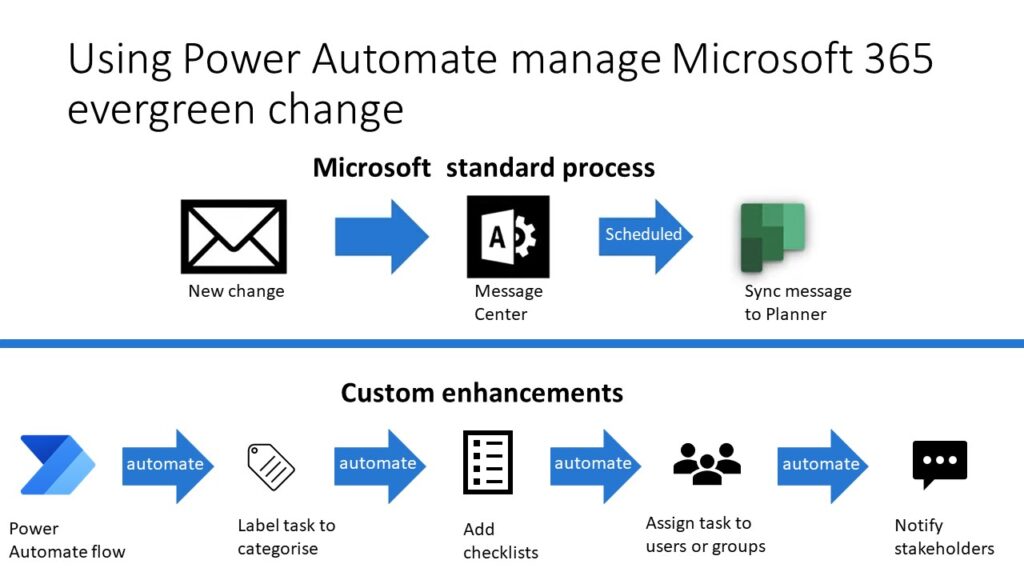
Microsoft post all change messages in the Microsoft 365 Message Center. However, the Message Center is not a workflow tool, so triaging and tracking the changes is difficult. In addition, people spend too much time manually copying content from Message Center to other applications and notifying stakeholders rather than assessing the change itself!

So how do you remove this manual overhead and automate your Microsoft 365 evergreen change process?

Read on for top tips and guidance on how to sync your Microsoft 365 messages to a Planner board, and then use Power Automate to automate and customise your process. My Power Automate Flow removes those repetitive tasks, giving you more time to focus on the triaging.


Read More