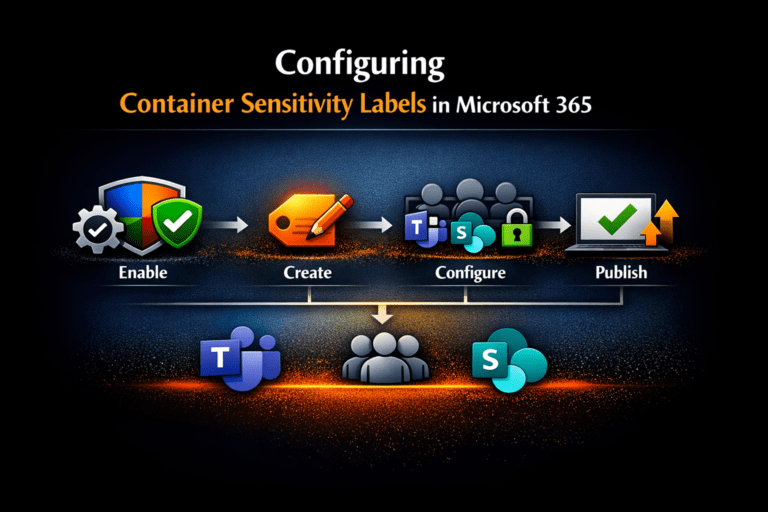
Microsoft Purview container sensitivity labels allow organisations to apply consistent, risk-based collaboration and access controls across Microsoft Teams, Microsoft 365 Groups, and SharePoint sites without relying on manual decisions at the point of creation.
Instead of users or administrators deciding security settings each time a workspace is created, container sensitivity labels enforce governance automatically based on collaboration risk.
This is one of the most effective ways to reduce Microsoft 365 Copilot oversharing risk because Copilot surfaces only what users already have access to.
If access controls are overly broad, AI exposure becomes overly broad.
This guide focuses specifically on implementation:
✅ How to configure Microsoft Purview container sensitivity labels
✅ How to apply risk-based collaboration controls
✅ How to govern guest access and sharing consistently
✅ How to integrate with Microsoft Entra Conditional Access
✅ How to operationalise secure-by-default collaboration governance
This article is part of a Microsoft Purview governance series focused on container sensitivity labels:
- Container Sensitivity Labels: The Purview “Hack” That Fixes Copilot Oversharing Fast focuses on the strategic governance problem and why container labels matter in a Copilot world.
- How to add sensitivity labels to your existing Microsoft 365 Groups, Teams and SharePoint sites focuses on analysing and applying labels at scale across existing collaboration workspaces..
Table of Contents
What Are Microsoft Purview Container Sensitivity Labels?
Microsoft Purview sensitivity labels can protect:
- Files and emails
- Collaborative workspaces (containers)
Supported collaborative workspaces include:
- Microsoft Teams
- Microsoft 365 Groups
- SharePoint sites
- Viva Engage communities
- Loop workspaces
When applied to a supported workspace, the sensitivity label enforces collaboration and access controls across that Team, Group, or site.
Unlike item-level labels, container sensitivity labels focus on workspace governance and access management rather than document protection.
Important: Container Labels Do Not Protect Files
This is the most commonly misunderstood aspect of Microsoft Purview container sensitivity labels.
Files stored inside labelled Teams, Groups, or SharePoint sites do not inherit the container label.
That means container labels do not apply:
- Encryption
- Watermarks
- Headers and footers
- Auto-labelling
- Content markings
Microsoft deliberately separates workspace governance from file protection.
The simplest way to understand the difference is:
🔐 Container labels control access to the workspace
📄 Item labels protect the content inside the workspace
Both are required for a complete Microsoft 365 data protection strategy.
Understanding the Architecture
✅ If you design only one layer, you leave a gap.
Container sensitivity labels govern the collaboration workspace itself, including:
- membership
- guest access
- external sharing
- unmanaged device access
- authentication requirements
Item sensitivity labels govern the files and emails stored inside those workspaces, including:
- encryption
- watermarking
- visual markings
- auto-labelling
- usage restrictions
Understanding this separation is critical when designing Microsoft 365 Copilot governance and Microsoft Purview protection strategies.
Why Oversharing Is a Growing Microsoft 365 Copilot Risk
Oversharing in Microsoft 365 often begins before any files are uploaded.
It starts when Microsoft Teams, SharePoint sites, and Microsoft 365 Groups are created using generic tenant-wide defaults that do not reflect collaboration risk.
As discussed during my Microsoft Security Community Purview Lightning Talk:
“The real problem is not whether users create workspaces themselves or IT does it for them. The problem is that very different collaboration scenarios are treated the same way.”
In many organisations, collaboration workspaces inherit:
- overly permissive sharing settings
- inconsistent guest access controls
- broad default permissions
- generic governance policies
In a Microsoft 365 Copilot environment, these issues become significantly more important because Copilot does not create access. It exposes what users already have access to.
That means:
- Overshared Teams become AI-accessible
- Broadly accessible SharePoint sites become discoverable
- Excessive external sharing increases exposure risk
Container sensitivity labels help organisations reduce this risk by applying collaboration controls consistently based on business risk.
Why Most Organisations Get This Wrong
Many organisations attempt to reduce oversharing by:
- restricting who can create Teams
- forcing IT approval processes
- broadly disabling guest access
- centralising workspace creation
However, these approaches often create operational friction without solving the underlying governance issue.
As discussed during the Purview Lightning Talk:
“The risk has not been removed. It has just been shifted.”
Whether collaboration workspaces are created by:
- end users
- IT administrators
- provisioning workflows
the same problem often remains:
Very different collaboration scenarios inherit identical controls.
An organisation-wide Team, a partner collaboration workspace, and a highly confidential project site frequently receive the same guest access and sharing settings despite having completely different risk profiles.
The objective should not be to slow collaboration down.
The objective should be to apply the correct controls automatically based on collaboration risk.
This is where Microsoft Purview container sensitivity labels become one of the most effective and underused Microsoft 365 governance controls available today.
Different Collaboration Scenarios Require Different Controls
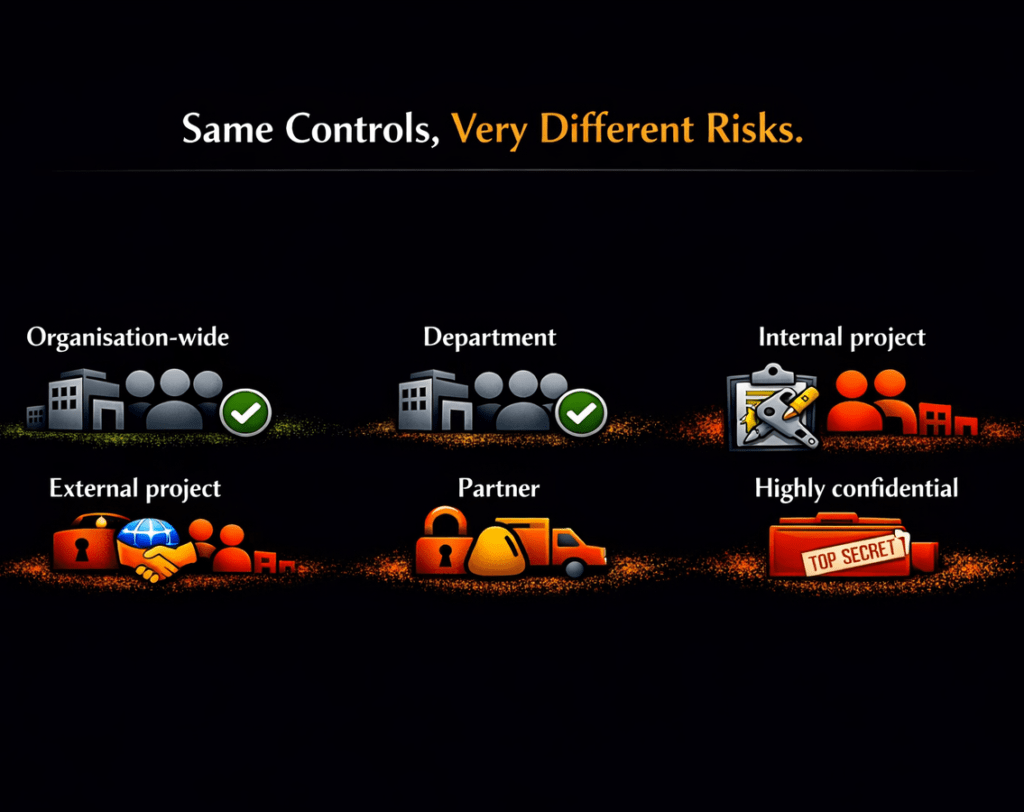
Most Microsoft 365 environments apply the same collaboration defaults across very different business scenarios.
However, collaboration risk varies significantly depending on:
- workspace purpose
- business sensitivity
- external access requirements
- regulatory obligations
- data exposure risk
Different collaboration scenarios require different governance controls.
Instead of relying on:
- tenant-wide defaults
- manual administrator decisions
- inconsistent approval processes
- user judgement
container sensitivity labels allow organisations to enforce collaboration controls automatically based on risk.
Example: Why Risk-Based Collaboration Matters
| Workspace Type | Business Scenario | Recommended Controls |
|---|---|---|
| Organisation-wide Team | Broad internal collaboration | Public, internal-only sharing |
| Partner Project Team | External collaboration | Guest access enabled, web-only unmanaged device access |
| Highly Confidential Legal Matter | Sensitive data | Private, no guests, restricted sharing, MFA enforced |
Applying identical sharing settings across all three scenarios creates unnecessary risk.
Container sensitivity labels allow organisations to standardise these controls automatically based on collaboration risk rather than relying on manual decisions.
What Can Container Sensitivity Labels Control?
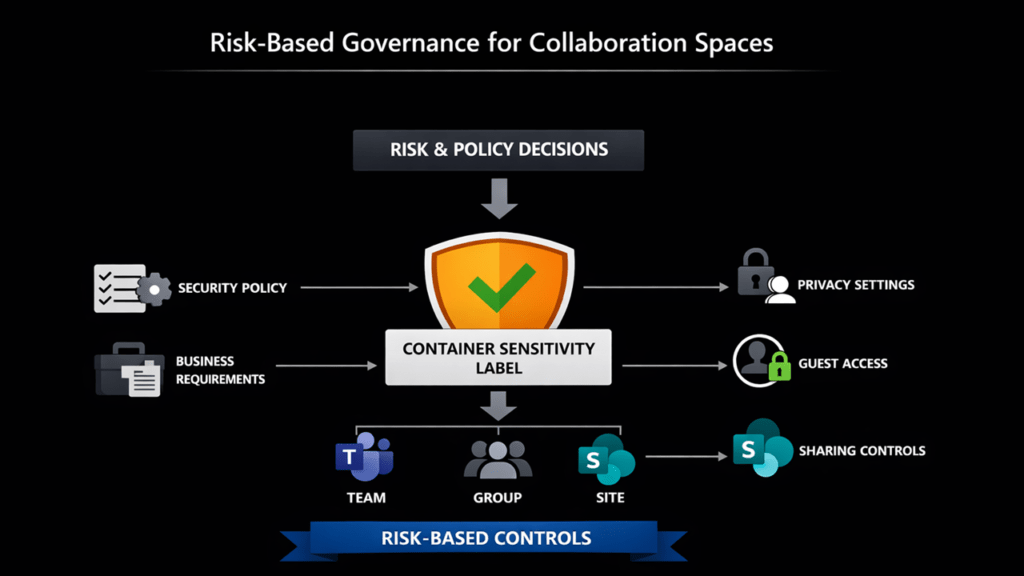
Microsoft Purview container sensitivity labels can enforce collaboration and access controls across Microsoft Teams, Microsoft 365 Groups, and SharePoint sites and other collaborative workspaces.
Collaboration Controls
Container labels can configure:
- Workspace privacy (Public or Private)
- Guest access permissions
- External sharing controls
- Default sharing link behaviour
- Site sharing permissions
Access Controls
Container labels can also integrate with Microsoft Entra Conditional Access to enforce:
- Unmanaged device restrictions
- Authentication contexts
- Session restrictions
Additional Workload-Specific Controls
Depending on workload support and Microsoft updates, additional controls may include:
- Shared channel settings
- Private team discoverability
- Viva Engage controls
Note that some controls only function correctly when integrated with Microsoft Entra Conditional Access.
Without Conditional Access, unmanaged device restrictions and authentication context protections will not provide the expected level of protection.
Container Labels vs Item Labels
| Capability | Container Labels | Item Labels |
|---|---|---|
| Workspace privacy | ✅ | ❌ |
| Guest access control | ✅ | ❌ |
| External sharing control | ✅ | ❌ |
| Unmanaged device access | ✅ | ❌ |
| Authentication context | ✅ | ❌ |
| Encryption | ❌ | ✅ |
| Watermarks | ❌ | ✅ |
| Auto-labelling | ❌ | ✅ |
| File protection | ❌ | ✅ |
Before You Start
Before configuring Microsoft Purview container sensitivity labels, ensure you understand the key prerequisites and dependencies.
Licensing Requirements
Microsoft documents that at least one active Microsoft Entra ID P1 licence is required to enable sensitivity labels for Groups and Sites.
Required Roles
Typical administrative roles include:
- Global Administrator
- Compliance Administrator
- Information Protection Administrator
- SharePoint Administrator
Important Dependencies
Some container label controls depend on additional Microsoft services.
| Feature | Dependency |
|---|---|
| Unmanaged device access | Conditional Access |
| Authentication contexts | Conditional Access |
| Guest controls | Entra B2B |
| SharePoint sharing controls | SharePoint Online |
Recommended Container Sensitivity Label Model
Do not replicate your file classification taxonomy.
Container sensitivity labels are not data classification labels.
They represent collaboration risk and define how users are allowed to collaborate.
Design labels around real collaboration scenarios:
- Who should access the workspace?
- Should guests be allowed?
- How tightly should sharing be controlled?
- What should happen on unmanaged devices?
Example Container Label Model
| Label | Use case | Privacy | Guest access | SharePoint sharing | Sharing link | Unmanaged devices | Authentication context |
|---|---|---|---|---|---|---|---|
| Public | Open collaboration within the organisation | Public | ❌ No | Internal only | Organisation wide | ✅ Allow | None |
| Internal | Standard internal collaboration | Private | ❌ No | Internal only | Specific people | ✅ Allow | None |
| External | Partner or customer collaboration | Private | ✅ Yes | New and existing guests | Specific people | 🌐 Web-only | Guests’ Terms of Use |
| Highly Confidential | Sensitive or regulated data | Private | ❌ No | Internal only | Existing people | ❌ Block | Enforce MFA |
✅ Design for behaviour, not policy
If your labels don’t match how people actually collaborate, they will be ignored or bypassed.
Avoid Overengineering Early
One of the most common mistakes is creating too many container labels too early.
Container labels should represent collaboration patterns, not full data classification taxonomies.
Most organisations achieve the best results starting with:
- Internal
- External
- Highly Confidential
Additional labels can be added later as governance maturity increases.
Step 1: Enable Container Labelling for Groups and Sites
If the Groups and sites option is greyed out in the label wizard, container labelling has not been enabled.
Microsoft documents enabling support in Microsoft Entra using Microsoft Graph PowerShell, including setting EnableMIPLabels.
⚠️Note that Microsoft states you need at least one active Microsoft Entra ID P1 licence in the tenant to configure this feature.
Install Required PowerShell Modules
Install-Module Microsoft.Graph.Authentication -Scope CurrentUser
Install-Module Microsoft.Graph.Beta.Identity.DirectoryManagement -Scope CurrentUser
Connect to Microsoft Graph
Connect-MgGraph -Scopes "Directory.ReadWrite.All"Check Current Setting
$grpUnifiedSetting = Get-MgBetaDirectorySetting |
  Where-Object { $_.Values.Name -eq "EnableMIPLabels" }

$grpUnifiedSetting.Values
Enable Container Labelling
$params = @{
  Values = @(@{ Name = "EnableMIPLabels"; Value = "True" })
}

Update-MgBetaDirectorySetting -DirectorySettingId $grpUnifiedSetting.Id -BodyParameter $params
Verify the Setting
$Setting = Get-MgBetaDirectorySetting -DirectorySettingId $grpUnifiedSetting.Id
$Setting.Values
Once enabled, the Groups and sites scope becomes available within Microsoft Purview sensitivity labels.
Full details Assign sensitivity labels to groups – Microsoft Entra ID | Microsoft Learn
Step 2: Create the Container Sensitivity Labels in Microsoft Purview
In the Microsoft Purview portal https://purview.microsoft.com/
Go to:
Information Protection → Labels
Select:
Create a label
Configure:
- Name
- Description
- Tooltip
Critical Configuration Step
Select:
✅ Groups and sites
Without this option selected, the label cannot control Teams, Microsoft 365 Groups, or SharePoint sites.
This is one of the most common configuration mistakes.
Step 3: Configure Collaboration and Access Controls
This is where Microsoft Purview container sensitivity labels become operational governance controls.
Configure Privacy
Options include:
- Public
- Private
- Let users decide
Public Workspaces
Public Teams and Groups are discoverable and joinable by users across the organisation.
In a Microsoft 365 Copilot environment, overly broad public collaboration can significantly increase oversharing risk.
Use Public labels carefully.
Private Workspaces
Private workspaces restrict access to approved members.
This is the recommended default for most organisations.
Configure Guest Access
Container labels can allow or block Microsoft Entra B2B guest access.
This allows organisations to create separate collaboration models for:
- internal collaboration
- external partner collaboration
- customer collaboration
- regulated environments
Configure SharePoint External Sharing
Container labels can control external sharing behaviour for labelled SharePoint sites.
This helps standardise:
- sharing permissions
- anonymous link usage
- guest collaboration
- access scope
Configure Unmanaged Device Access
This is one of the most valuable controls for reducing data leakage risk.
Microsoft documents that unmanaged device controls integrate with Microsoft Entra Conditional Access.
Examples include:
- web-only access
- blocking downloads
- session restrictions
- preventing sync to unmanaged devices
Note that without Conditional Access, unmanaged device controls will not function correctly.
Configure Authentication Contexts
Authentication contexts allow labelled SharePoint sites to trigger Conditional Access policies.
This enables stronger protection for sensitive collaboration workspaces.
Examples include:
- MFA enforcement
- compliant device requirements
- session restrictions
- stronger authentication requirements
Again, this requires proper Conditional Access integration.
Step 4: Publish the Labels
Creating labels alone does not make them available.
You must publish them using a sensitivity label policy.
Publish the labels to users and groups that require access to:
- Microsoft Teams
- Microsoft 365 Groups
- SharePoint sites
- Viva Engage communities
- Loop workspaces
Once published, users and administrators can apply the labels during workspace creation.
Step 5: Configure Advanced SharePoint Settings (PowerShell)
Some SharePoint-specific container label settings are PowerShell-only.
Microsoft documents configuring these settings using:
Set-Label -AdvancedSettingsThese settings include:
- default sharing link behaviour
- default link permissions
- site sharing restrictions
Example: Set Default Sharing Scope
Set-Label -Identity <LabelGuid> -AdvancedSettings @{DefaultSharingScope="SpecificPeople"}Example: Set Default Sharing Permission
Set-Label -Identity <LabelGuid> -AdvancedSettings @{DefaultShareLinkPermission="Edit"}Example: Restrict Site Sharing
Set-Label -Identity <LabelGuid> -AdvancedSettings @{MembersCanShare="MemberShareNone"}These advanced settings are particularly valuable for reducing accidental oversharing in SharePoint Online.
Critical Microsoft Nuance: Delegation to Site Owners
Microsoft notes that some container label settings can still allow site owners to modify:
- external sharing settings
- authentication context behaviour
This is an important operational reality.
Container sensitivity labels improve governance consistency, but they do not remove the need for:
- governance oversight
- access reviews
- SharePoint administration
- lifecycle management
Practical takeaway:
Control this through:
- label design
- label scope
- provisioning governance
- administrative boundaries
not just through label publishing.
Operational Benefits Of Container Sensitivity Labels
Container sensitivity labels are not just security controls.
They also simplify governance operations by:
- reducing reliance on manual approvals
- standardising collaboration controls
- improving consistency across Teams and SharePoint
- enabling scalable Microsoft 365 governance
Consistent Governance Without User Security Decisions
One of the biggest advantages of container sensitivity labels is that users no longer need to make complex security decisions themselves.
As discussed during the demo:
“Users are not asked to make security decisions. Those decisions have already been made centrally and enforced automatically.”
When users create a Team, Group, or SharePoint site, they simply select the collaboration scenario that matches their business requirement.
The appropriate governance controls are then applied automatically and consistently every time.
This significantly reduces:
- accidental oversharing
- inconsistent sharing behaviour
- reliance on user training
- manual governance overhead
The practical model becomes:
✅ Administrators define collaboration scenarios centrally
✅ Users choose the appropriate collaboration model
✅ Microsoft enforces the correct controls automatically
Container Labels Can Also Remediate Existing Oversharing
Container sensitivity labels are not only preventative controls for newly created Microsoft Teams and SharePoint sites.
They can also be applied to existing:
- Microsoft Teams
- Microsoft 365 Groups
- SharePoint sites
to standardise governance across legacy collaboration environments.
For many organisations, this makes container sensitivity labels one of the fastest ways to reduce Microsoft 365 oversharing risk at scale without requiring large migration projects.
If you already have hundreds or thousands of collaboration workspaces, retro-labelling should form part of your broader Microsoft 365 Copilot governance strategy.
For a detailed walkthrough covering:
- analysing existing sharing configurations
- identifying oversharing risks
- mapping labels to collaboration scenarios
- bulk applying labels using PowerShell and PnP PowerShell
see my dedicated guide:
How to Add Sensitivity Labels to Existing Microsoft 365 Groups, Teams and SharePoint Sites
Common Mistakes to Avoid
1. Treating Container Labels as Data Classification Labels
Container labels govern collaboration behaviour, not file classification.
2. Creating Too Many Labels Too Early
Keep the model simple initially.
3. Ignoring Conditional Access Dependencies
Some controls require Microsoft Entra Conditional Access to function correctly.
4. Assuming Container Labels Protect Files
Files do not inherit the container label.
5. Forgetting to Retro-Label Existing Workspaces
Many organisations only label new Teams and sites while legacy workspaces remain ungoverned.
Key Considerations And Limitations
Microsoft Purview container sensitivity labels have several important limitations:
- Container labels govern workspaces, not files
- Files do not inherit container labels
- Some controls require Conditional Access
- Some settings require PowerShell
- Some workload support varies by Microsoft service
- Label names currently display only in the original configured language
Understanding these limitations early helps avoid governance design issues later.
Frequently Asked Questions (FAQ)
What are Microsoft Purview container sensitivity labels?
Microsoft Purview container sensitivity labels are sensitivity labels configured for Groups and sites that apply collaboration and access controls to:
– Microsoft Teams
– Microsoft 365 Groups
– SharePoint sites
These labels enforce settings such as privacy, guest access, and sharing behaviour across the entire workspace.
✅ They are designed to control how people collaborate, not to protect individual files.
What is sensitivity labeling for containers in Microsoft 365?
Sensitivity labelling for containers refers to applying labels to collaboration workspaces, including:
– Microsoft Teams
– Microsoft 365 Groups
– SharePoint sites
These labels enforce governance controls such as:
– Workspace privacy (Public or Private)
– Guest access permissions
– External sharing configuration
– Unmanaged device access
– Conditional Access enforcement
✅ Container labelling allows organisations to apply risk-based collaboration controls consistently, rather than relying on manual decisions.
What are the types of sensitivity labels?
Microsoft Purview sensitivity labels support two primary types:
Item sensitivity labels
– Applied to files and emails to provide:
– Encryption
– Content markings (headers, footers, watermarks)
– Auto-labelling
Container sensitivity labels
– Applied to Microsoft Teams, Microsoft 365 Groups, and SharePoint sites to control:
Access
– Guest collaboration
– External sharing
– Workspace configuration
✅ In practice, organisations need both to deliver complete Microsoft 365 data protection and governance.
How do Microsoft sensitivity labels work?
Microsoft sensitivity labels work by applying policy-enforced protections and controls based on how data or collaboration workspaces should be used.
At a high level:
Item labels protect content directly
– (e.g. encrypt a document or apply a watermark)
Container labels control how people collaborate
– (e.g. restrict guest access or external sharing)
– Once a label is applied, Microsoft automatically enforces the configured settings across:
– Microsoft 365 apps
– SharePoint and OneDrive
– Microsoft Teams
– Microsoft Entra integration (for Conditional Access scenarios)
✅ The key principle: labels translate policy into enforced controls, not just classification.
Do container labels apply to files in Teams and SharePoint?
No. Files stored in labelled Teams, Groups, or SharePoint sites do not inherit the container label.
If you need:
– Encryption
– Watermarks
– Auto-labelling
…you must use item-level sensitivity labels.
✅ Container labels govern access to the workspace, not the content inside it.
Can container sensitivity labels control guest access in Teams?
Yes. Container sensitivity labels include settings for external user access (Entra B2B guest access).
This allows you to:
– Allow guest access for specific collaboration scenarios
– Block guest access for sensitive workspaces
✅ This enables consistent, risk-based control of external collaboration.
Can container sensitivity labels restrict external sharing from SharePoint sites?
Yes. Container sensitivity labels can enforce external sharing policies for labelled SharePoint sites.
This includes controlling:
– Whether external sharing is allowed
– Whether new guests can be invited
– The scope of sharing links
✅ This helps standardise sharing behaviour across Microsoft 365.
Can container sensitivity labels integrate with Conditional Access?
Yes. Container sensitivity labels integrate with Microsoft Entra Conditional Access.
This enables:
– Unmanaged device restrictions
– Authentication contexts
– Session controls
– MFA enforcement
⚠️ These controls only work correctly when Conditional Access is configured.
Do I need PowerShell to configure everything?
No. Most configuration can be completed in the Microsoft Purview portal.
However, Microsoft documents that some SharePoint-specific settings require PowerShell, including:
– Default sharing link behaviour
– Default sharing permissions
– Site sharing restrictions
✅ PowerShell is typically needed for advanced governance scenarios.
Where to find sensitivity labels in Purview?
Sensitivity labels are managed in the Microsoft Purview portal:
👉 https://purview.microsoft.com
Navigate to:
Information Protection → Labels
From here, you can:
– Create new sensitivity labels
– Edit existing labels
– Configure label settings
– Define scopes (Files, Emails, Groups and sites)
To make labels available for use, you must also:
👉 Publish them via a label policy
✅ Without publishing, users and admins will not be able to apply the labels.
How do container sensitivity labels help reduce Copilot oversharing?
Microsoft 365 Copilot operates within existing permissions.
That means it can only surface content users already have access to.
Container sensitivity labels reduce oversharing risk by:
– Restricting access at the workspace level
– Controlling guest access and sharing
– Limiting exposure before content is created
– Enforcing least-privilege collaboration
✅ If access is controlled correctly, Copilot exposure is controlled correctly.
Recommended Next Steps
To implement Microsoft Purview container sensitivity labels successfully:
- Design a simple collaboration-focused label model
- Enable Groups and Sites support (
EnableMIPLabels) - Create labels with the Groups and Sites scope
- Configure guest access and sharing controls
- Integrate Conditional Access where required
- Publish the labels
- Configure PowerShell-only advanced settings
- Retro-label existing Teams, Groups, and SharePoint sites
Final Thoughts
Microsoft Purview container sensitivity labels are one of the most effective ways to standardise collaboration governance across Microsoft Teams, SharePoint, and Microsoft 365 Groups.
They allow organisations to translate governance policy into enforceable collaboration controls at scale.
In a Microsoft 365 Copilot world, this matters more than ever.
Copilot does not invent access.
It surfaces what users can already reach.
That means governance decisions made during workspace creation directly influence AI exposure later.
If permissions are overly broad, Copilot exposure becomes overly broad.
Container sensitivity labels help organisations reduce that risk consistently and operationally.
Start simple.
Most organisations gain significant value from just three labels:
- Internal
- External
- Highly Confidential
Focus first on aligning labels to real collaboration behaviours, not theoretical classification models.
You can always mature the model later.
Additional Resources
If you want to go deeper:
Strategic overview
Container Sensitivity Labels: The Purview “Hack” That Fixes Copilot Oversharing Fast
Retro-Labelling Existing Workspaces
How to add sensitivity labels to your existing Microsoft 365 Groups, Teams and SharePoint sites
Prefer to see this step-by-step?
- Enabling and creating sensitivity labels for Microsoft Teams, SharePoint and Microsoft 365 Groups
- Empowering Cloud video on Sensitivity Labels for Groups, Teams and Sites.
Microsoft References
- Use sensitivity labels to protect collaborative workspaces (groups and sites) | Microsoft Learn
- Assign sensitivity labels to groups – Microsoft Entra ID | Microsoft Learn
- Use sensitivity labels to configure the default sharing link type | Microsoft Learn
- Set-Label (ExchangePowerShell) | Microsoft Learn
Need help governing AI and protecting your data in Microsoft 365?
If you’re working through these challenges in your organisation, I can help.
Nikki Chapple is a dual Microsoft MVP (Microsoft 365 and Security) and Principal Cloud Architect at CloudWay, helping enterprises reduce data exposure, prevent data loss, and manage AI risk across Microsoft 365. More about Nikki.
She co-hosts the AI Governance and Data Security Show with Ryan John Murphy, helping organisations securely adopt AI, govern data, and manage generative AI risk.
📺 YouTube · 🎧 Spotify · 🎧 Apple · 🔗 LinkedIn